
AI
Generative AI is the future of data science, and everything else. Unfortunately, it is rapidly changing, so these instructions may be out of date. Highlights:
First, we encourage you to experiment with a wide variety of AIs, especially the free versions, generally via their default chat interfaces. Ask the AI for code which solves your problem. Copy provided code over to Positron. Try it. If the initial code does not do what you want, tell the AI what happened — often by copy/pasting from Positron back to the AI, especially if there was an error — and then ask for another try.
Second, see here for the latest information on using Positron Assistant, our recommended approach.
Third, to use Positron Assistant, you need an API account from Athropic.
Go here and follow the instructions. We recommend buying $5 worth of credits. This is plenty to get started, and also prevents you from inadvertantly spending too much money. Once you are more experienced, you can adjust your account settings.
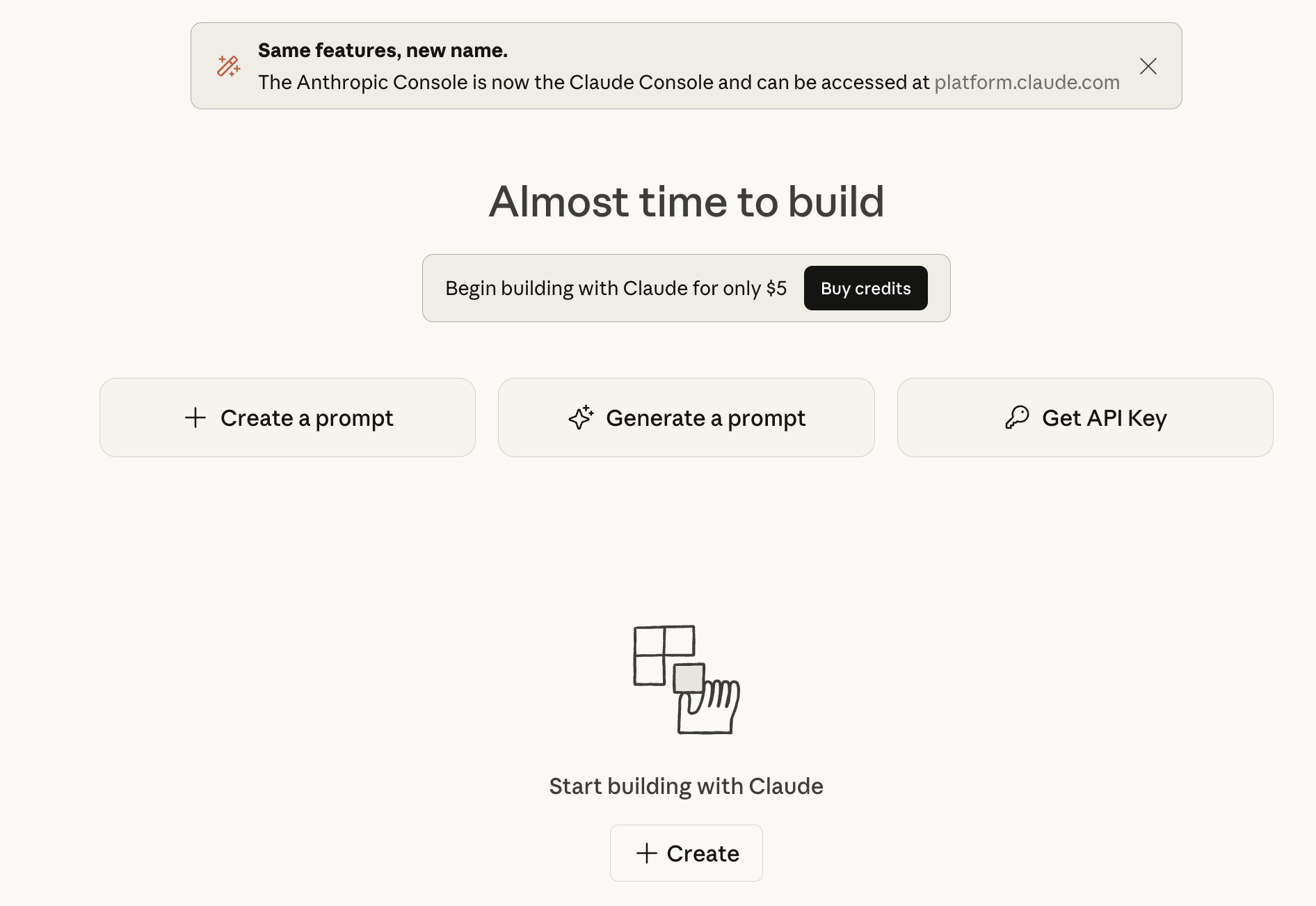
You want to use the API. Click the button to create an API key.
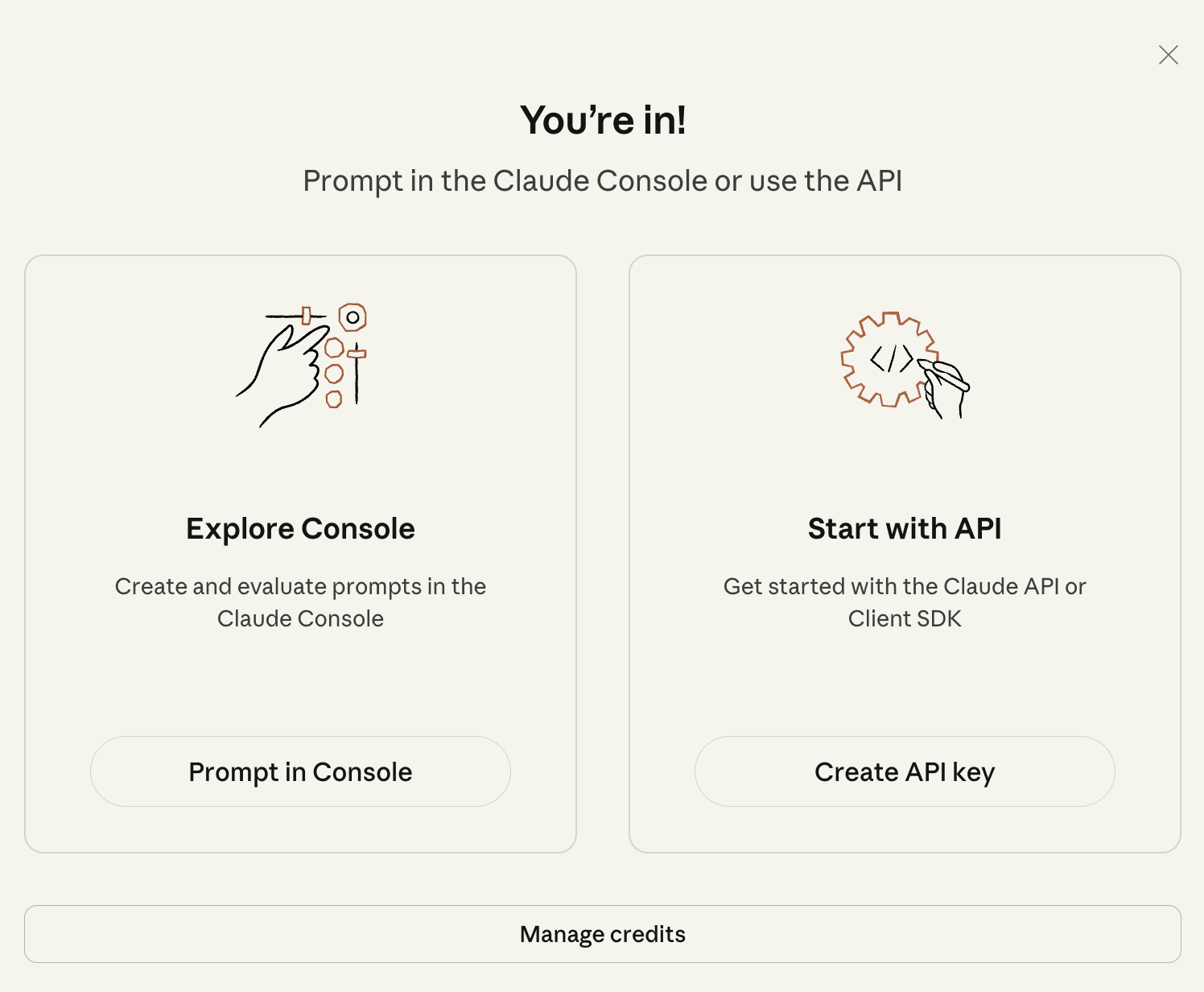
Note that the interface for Claude, and other generative AIs, is always changing. So, these images may not match what you see. The goal is to get an API key.
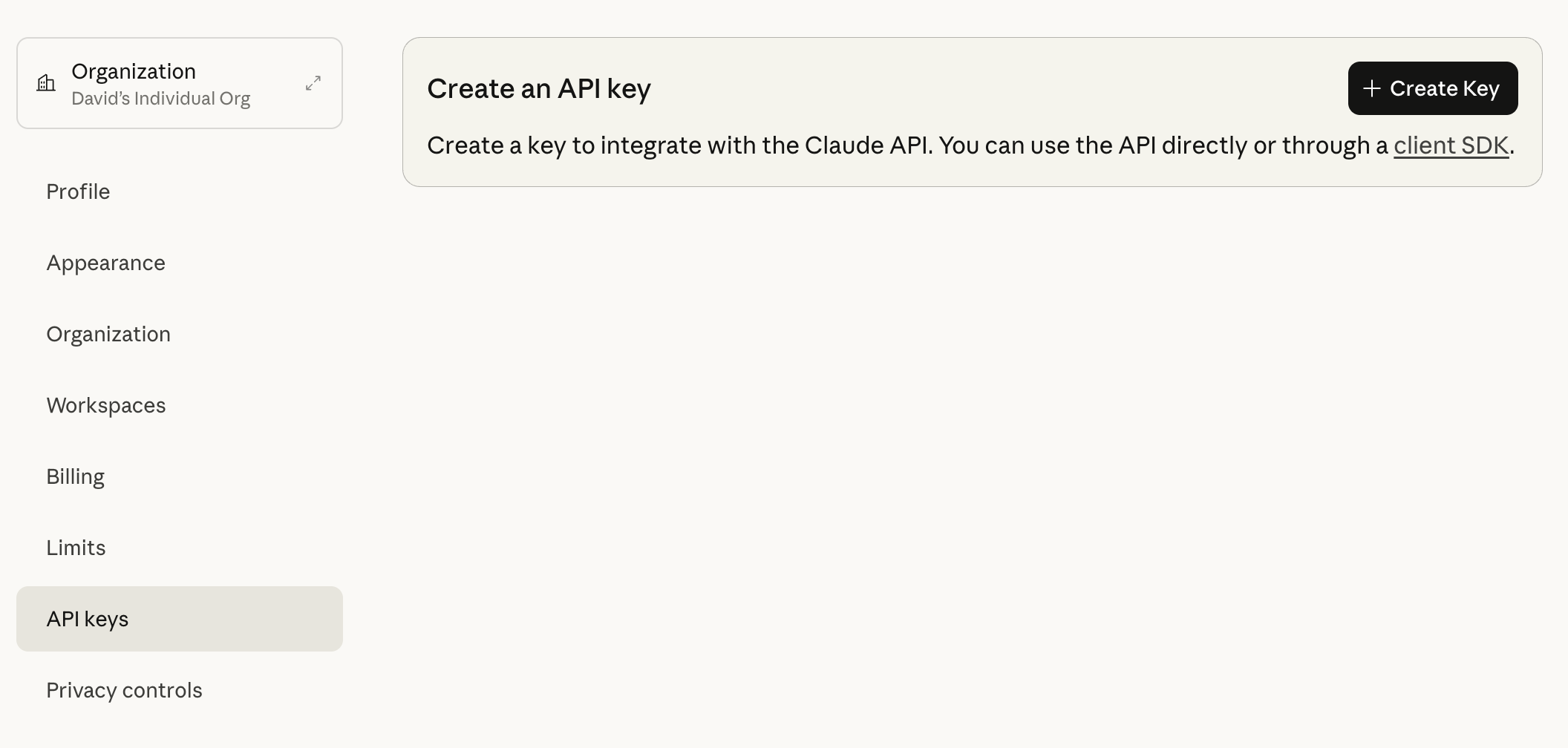
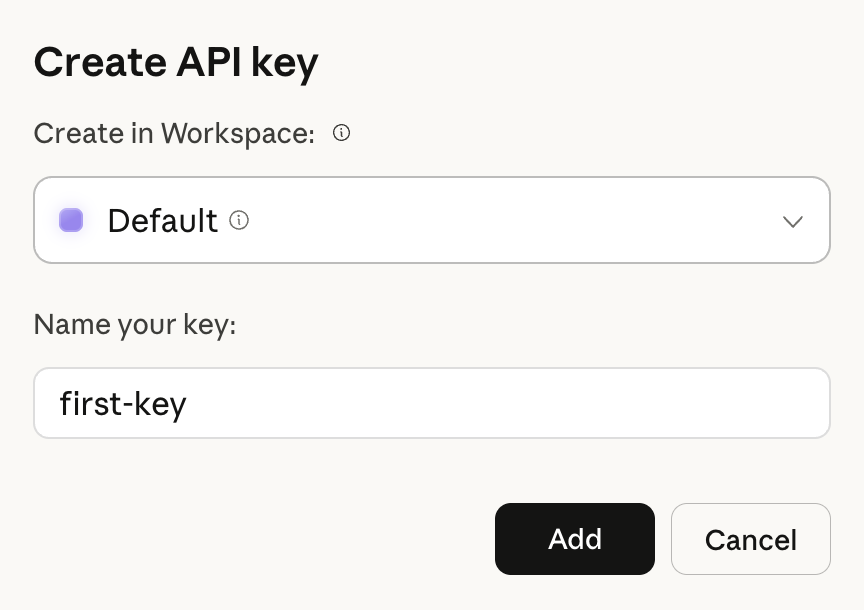
Once you get the key, copy it somewhere temporarily, in a draft email is fine. We won’t be making use of advanced Claude tools like workspaces.
Note that these instructions largely mimic the instructions which Positron provides.
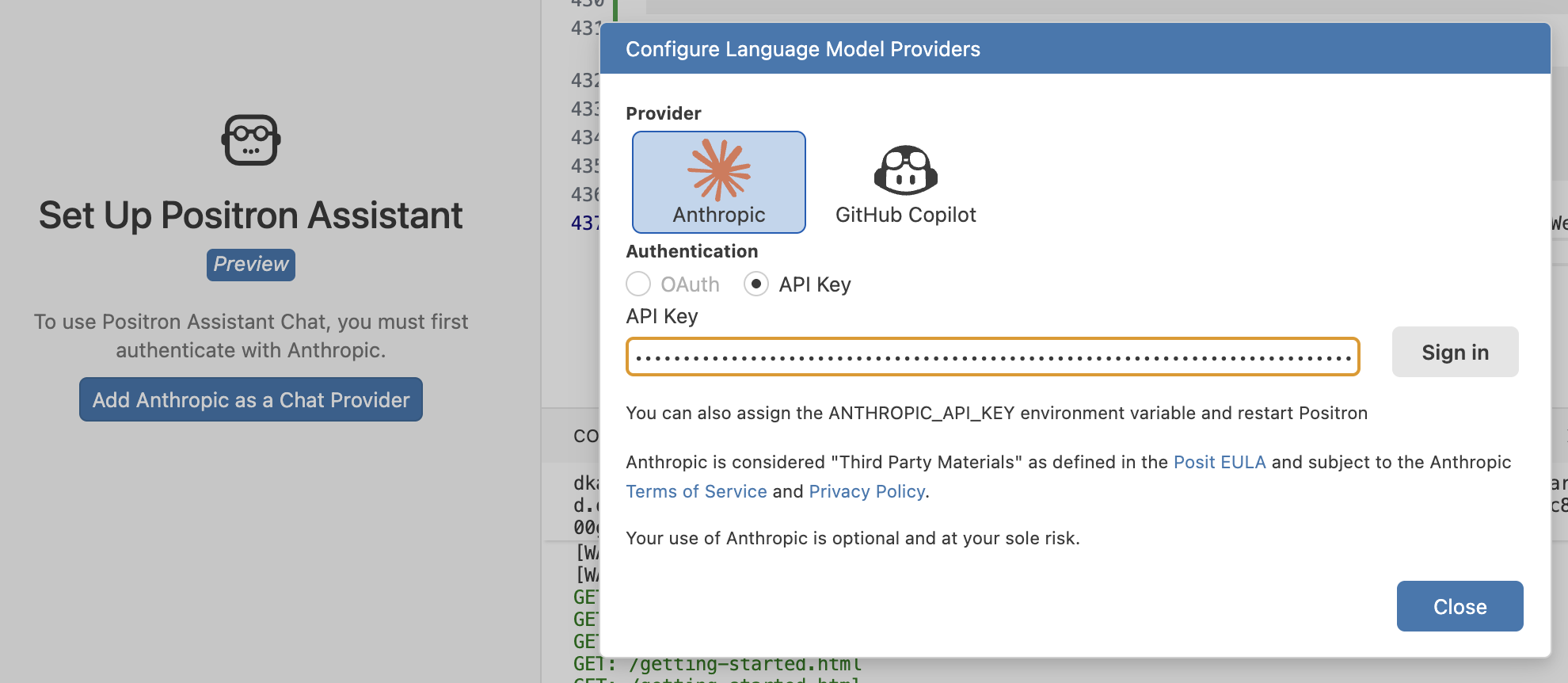
The last step is to click on Positron Assistant button and provide the API key. You need to click “Sign In” after providing your API key. Be careful in pasting in your API key since something as simple as an extra space at the end will cause an error.
You should now have access to Positron Assistant!